Google Play Store Not Working on Android? 10 Ways to Fix It
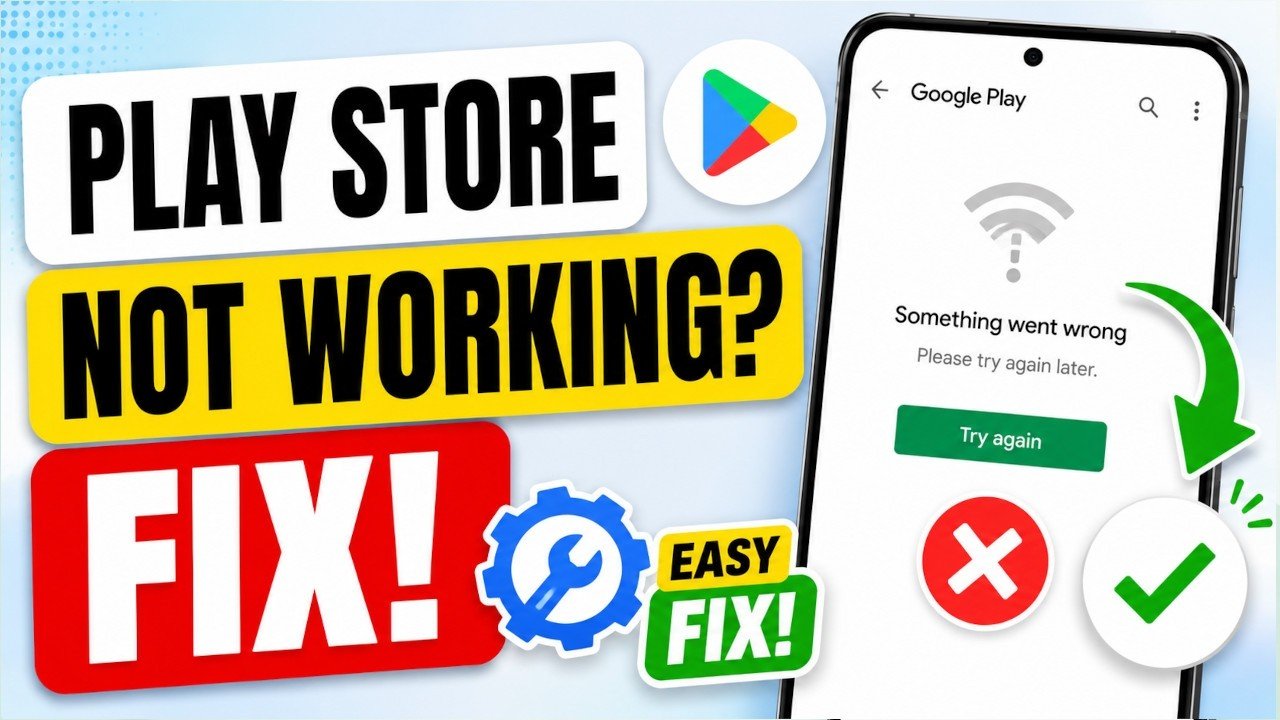
Is the Google Play Store not working on your Android phone? You may be unable to open the Play Store, download apps, install updates, or see an error such as “Something went wrong.”
This problem can happen for several reasons, including a poor internet connection, incorrect date and time, insufficient storage, corrupted Play Store data, or problems with Google Play Services.
Fortunately, most Play Store problems can be fixed without resetting your phone.
In this guide, we will go through 10 simple ways to fix Google Play Store problems on Android.
Why Is Google Play Store Not Working?
The Google Play Store may stop working because of:
- Slow or unstable internet
- Full phone storage
- Incorrect date and time
- Corrupted Play Store cache
- Corrupted Google Play Services data
- An outdated Android system
- Problems with your Google account
- VPN or network-related issues
- A temporary Google service problem
- A problem with the Play Store app itself
Try the following solutions one by one. After each method, open the Play Store and check whether the problem has been fixed.
1. Check Your Internet Connection
The first thing you should check is your internet connection.
Open Chrome and visit a website. If websites are also loading slowly or not opening, the problem may be your internet connection rather than the Play Store.
Try these steps:
- Turn Wi-Fi off.
- Wait a few seconds.
- Turn Wi-Fi back on.
- Try opening the Play Store again.
If you are using mobile data, turn mobile data off and on again.
You can also switch between Wi-Fi and mobile data to determine whether the problem is related to your network.
2. Restart Your Android Phone
A simple restart can fix temporary system and application problems.
To restart your phone:
- Press and hold the Power button.
- Tap Restart.
- Wait for the phone to start again.
- Open Google Play Store.
If the Play Store works after restarting, the problem was probably caused by a temporary system or background-process issue.
3. Check Your Phone’s Date and Time
Incorrect date or time settings can sometimes interfere with Google services.
To check them:
- Open Settings.
- Go to System or General management.
- Select Date & time.
- Turn on Set time automatically.
- Turn on Set time zone automatically, if available.
The exact menu names can be different depending on your Android phone manufacturer.
After changing the settings, restart the Play Store.
4. Clear Google Play Store Cache
One of the most useful solutions is clearing the Play Store cache.
Cached files can sometimes become corrupted and cause the application to behave incorrectly.
To clear the cache:
- Open Settings.
- Tap Apps.
- Find Google Play Store.
- Tap Storage & cache.
- Tap Clear cache.
- Open the Play Store again.
Clearing the cache normally does not remove your installed applications.
If the problem continues, you can also try Clear storage or Clear data. This resets the Play Store application’s local data and may require some settings to be initialized again.
5. Check Available Storage
If your phone is almost full, Google Play Store may not be able to download or install applications.
To check storage:
- Open Settings.
- Go to Storage.
- Check how much free space is available.
If storage is almost full, remove unnecessary files such as:
- Large videos
- Old downloads
- Unused applications
- Duplicate photos
- Unnecessary documents
Try to keep some free space available before installing large applications or updates.
6. Clear Google Play Services Cache
Google Play Services works in the background and supports many Google applications and services.
If Play Store problems continue after clearing its cache, try clearing the Google Play Services cache.
Go to:
Settings → Apps → Google Play Services → Storage & cache → Clear cache
The exact steps can vary between Android manufacturers.
After doing this, restart your phone and try opening Google Play Store again.
7. Check Download Manager
Android uses a system component called Download Manager for many downloads.
If it has been disabled or is experiencing a problem, applications may fail to download from the Play Store.
To check it:
- Open Settings.
- Open Apps.
- Look for Download Manager or Downloads.
- Make sure it is enabled.
- Open the Play Store and try downloading an application.
On some Android phones, system applications may be hidden. If you cannot find Download Manager, use the Apps settings menu to show system applications.
8. Remove and Add Your Google Account
If the Play Store still isn’t working, your Google account connection may need to be refreshed.
Before doing this, make sure you know the Google account email address and password.
To remove the account:
- Open Settings.
- Go to Accounts or Passwords & accounts.
- Select your Google account.
- Tap Remove account.
- Restart your phone.
- Return to the account settings.
- Add your Google account again.
Then open Google Play Store and check whether the problem has been resolved.
9. Disable VPN Temporarily
If you are using a VPN, it may interfere with Google services or change your network location.
Try disconnecting the VPN temporarily and then open the Play Store.
If Play Store starts working normally after disconnecting the VPN, the VPN or its server may be causing the problem.
You can reconnect it later and try a different server if necessary.
10. Update Android
An outdated Android system can sometimes cause compatibility or Google service problems.
Check for system updates:
- Open Settings.
- Go to System or Software update.
- Tap Check for updates.
- Install an available update.
- Restart your phone.
The location of the update option depends on your phone manufacturer.
What If Google Play Store Opens but Apps Won’t Download?
If the Play Store opens normally but downloads remain stuck on Pending, try these solutions:
- Check your internet connection.
- Restart your phone.
- Check available storage.
- Clear Play Store cache.
- Clear Google Play Services cache.
- Check whether automatic date and time are enabled.
- Cancel other pending downloads or updates.
- Restart the download.
If several applications are waiting for updates, one problematic download can sometimes prevent others from proceeding.
What If Google Play Store Keeps Crashing?
If the Play Store closes immediately after opening, try:
- Restarting your phone
- Clearing Play Store cache
- Clearing Play Store storage
- Clearing Google Play Services cache
- Installing Android updates
- Checking available storage
- Removing and adding your Google account
Start with the cache-clearing method because it is quick and does not normally affect your installed apps.
What If You See “Something Went Wrong”?
The message “Something went wrong” is relatively general and can have several causes.
Try these steps:
- Check your internet.
- Set date and time automatically.
- Restart your phone.
- Clear Play Store cache.
- Clear Google Play Services cache.
- Disable your VPN.
- Check for Android updates.
- Try your Google account again.
If none of these solutions work, the issue could be temporary or related to Google’s services rather than your phone.
Frequently Asked Questions
Why is my Google Play Store not opening?
The Play Store may not open because of corrupted cache, Google Play Services problems, insufficient storage, network issues, or a temporary application error. Restarting your phone and clearing the Play Store cache are good first steps.
Why is Google Play Store stuck on downloading?
A download can remain stuck because of an unstable internet connection, insufficient storage, pending downloads, corrupted cache, or Google Play Services problems.
Will clearing Play Store cache delete my apps?
No. Clearing the Play Store cache normally does not uninstall your applications or delete your personal files.
Why can’t I install apps from Google Play Store?
Check your internet connection, available storage, Android compatibility, and Play Store cache. Also make sure your device is signed in to a working Google account.
Do I need to factory reset my phone?
Usually, no. Most Google Play Store problems can be investigated and fixed without performing a factory reset. A factory reset should be considered only after other troubleshooting methods have failed and you have backed up your important data.
Final Thoughts
When Google Play Store is not working on Android, don’t immediately factory reset your phone.
Start with the simple solutions: check your internet connection, restart the phone, verify the date and time, clear the Play Store cache, and make sure you have enough storage.
If those steps don’t work, move on to Google Play Services, Download Manager, your Google account, VPN settings, and Android updates.
In most cases, one of these troubleshooting methods can get the Play Store working again without losing your personal data.