How to Fix Android Apps Not Installing: 10 Easy Solutions
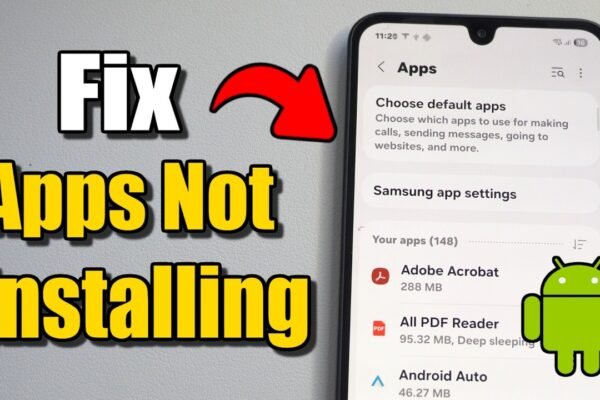
Are Android apps not installing on your phone? You download an app from the Google Play Store, but the installation gets stuck, fails, or shows an error.
This can happen because of insufficient storage, internet problems, corrupted Play Store data, an outdated Android version, or compatibility issues.
The good news is that you can usually fix the problem without resetting your phone.
In this guide, we’ll show you 10 simple ways to fix Android apps that won’t install.
Why Are Apps Not Installing on Android?
There are several possible reasons:
- Your phone doesn’t have enough storage
- Your internet connection is unstable
- Google Play Store has corrupted cache
- Google Play Services has a problem
- Your Android version is too old
- The app isn’t compatible with your device
- Downloads are stuck in the Play Store
- Your Google account has a temporary problem
- Download Manager is disabled
- Your phone needs a restart or system update
Try the solutions below one at a time.
1. Check Your Internet Connection
A poor internet connection can prevent an application from downloading or installing correctly.
Try opening a website in Chrome to check your connection.
If you’re using Wi-Fi:
- Turn Wi-Fi off.
- Wait a few seconds.
- Turn Wi-Fi back on.
- Try downloading the app again.
You can also switch to mobile data and see if the installation works.
If the app starts downloading normally after changing networks, your original connection may have been the problem.
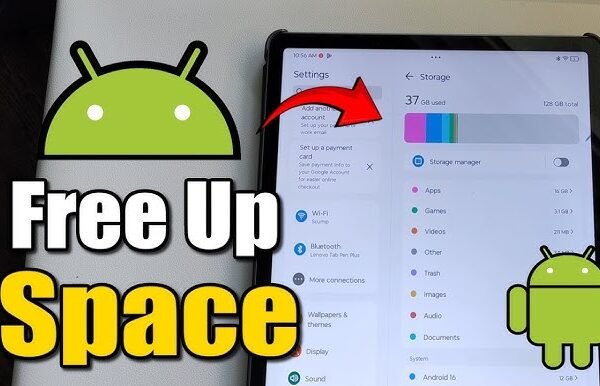
2. Check Your Phone’s Storage
Insufficient storage is one of the most common reasons Android apps fail to install.
Even if an app appears to require only a small amount of space, Android may need additional temporary storage during installation.
To check your storage:
- Open Settings.
- Tap Storage.
- Check the available space.
If your storage is almost full, delete unnecessary:
- Videos
- Photos
- Downloads
- Large files
- Unused applications
After freeing up some space, restart the Play Store and try installing the application again.
3. Restart Your Android Phone
A simple restart can fix temporary Android and Google Play Store problems.
To restart:
- Press and hold the Power button.
- Select Restart.
- Wait for the phone to boot.
- Open Google Play Store.
- Try installing the application again.
This is one of the quickest troubleshooting methods and should be tried before making major changes to your phone.
4. Clear Google Play Store Cache
The Google Play Store stores temporary files called cache.
If these files become corrupted, downloads and installations may stop working correctly.
To clear the cache:
- Open Settings.
- Go to Apps.
- Select Google Play Store.
- Tap Storage & cache.
- Select Clear cache.
- Open the Play Store again.
Then try installing your application.
Clearing the cache normally does not uninstall your existing applications.
5. Clear Google Play Store Storage
If clearing the cache didn’t solve the problem, you can try clearing the Play Store’s stored data.
Go to:
Settings → Apps → Google Play Store → Storage & cache
Then select Clear storage or Clear data, depending on your Android version.
This resets the Play Store’s local application data.
After doing this, open Google Play Store and try downloading the app again.
6. Clear Google Play Services Cache
Google Play Services is an important background component used by many Google services and Android applications.
A problem with its cached data can sometimes affect Play Store operations.
Try:
Settings → Apps → Google Play Services → Storage & cache → Clear cache
Then restart your phone and try the installation again.
The menu names may be slightly different depending on your phone manufacturer and Android version.
7. Check Whether the App Is Compatible
Sometimes an app simply isn’t compatible with your device.
Open the application’s Play Store page and check whether your device is supported.
Compatibility can depend on:
- Android version
- Device architecture
- Screen or hardware requirements
- Country or region
- Developer requirements
If Google Play Store says the app isn’t compatible with your device, clearing the cache will not necessarily solve the problem.
In that situation, check whether your phone has a system update available or whether the developer provides another supported version.
8. Cancel Other Pending Downloads
If several applications are downloading or updating at the same time, your new installation may remain pending.
Open Google Play Store and check:
Profile picture → Manage apps & device
Look for pending updates or downloads.
Allow important updates to finish or cancel unnecessary downloads, then try installing the application again.
9. Check Download Manager
Android uses a system component called Download Manager for downloads.
If it has been disabled or isn’t working correctly, Play Store downloads may fail.
To check it:
- Open Settings.
- Go to Apps.
- Search for Download Manager or Downloads.
- Make sure it is enabled.
Some phones hide system applications. If you can’t find it, look for an option such as Show system apps in the Apps settings.
After checking it, restart your phone and try the installation again.
10. Update Android
If none of the previous solutions work, check whether your phone has a system update available.
Go to:
Settings → System → Software update
The exact location can vary between manufacturers.
If an update is available:
- Connect your phone to a stable internet connection.
- Make sure the battery has enough charge.
- Install the update.
- Restart the phone.
- Try installing the app again.
An Android update can improve compatibility and fix system-level problems.
What If the App Is Stuck on “Pending”?
If an Android app stays on Pending in Google Play Store, try these steps:
- Check your internet connection.
- Restart your phone.
- Check available storage.
- Clear Play Store cache.
- Cancel other pending downloads.
- Clear Google Play Services cache.
- Try again after a few minutes.
If multiple apps are stuck on Pending, the problem is more likely related to the Play Store, network, or device rather than a single application.
What If an APK Won’t Install?
If you’re installing an APK downloaded outside Google Play Store, the troubleshooting process is different.
First, make sure the APK comes from a trustworthy source.
Then check:
- Whether the APK supports your Android version
- Whether you have enough storage
- Whether the APK is corrupted
- Whether the package is compatible with your device
- Whether Android is blocking installation from that source
Do not install APK files from unknown or suspicious websites, especially if the file claims to be a modified or cracked version of a popular application.
What If You Get “App Not Installed”?
The “App not installed” message can have several causes.
Try:
- Remove the old version of the application if appropriate.
- Check available storage.
- Make sure the APK is compatible with your device.
- Download the APK again from a trusted source.
- Restart your phone.
- Check whether the application requires a newer Android version.
If you are installing an APK over an existing application, a signing conflict can also prevent installation.
Frequently Asked Questions
Why are apps not installing on my Android phone?
Common causes include insufficient storage, internet problems, Play Store cache issues, compatibility problems, pending downloads, or Google Play Services issues.
Why is Google Play Store stuck on Pending?
It can happen because of a poor internet connection, insufficient storage, pending updates, or a temporary Play Store problem.
Will clearing Play Store cache delete my apps?
No. Clearing the Play Store cache normally does not uninstall your installed applications.
Why does my phone say “App not installed”?
The APK may be incompatible, corrupted, incorrectly packaged, or conflicting with an existing version of the application.
Do I need to factory reset my Android phone?
Usually not. Try the troubleshooting methods in this guide first. A factory reset should be considered only as a last resort after backing up important data.
Final Thoughts
When Android apps are not installing, don’t immediately reset your phone.
Start with the simplest solutions: check your internet connection, free up storage, restart your phone, and clear the Google Play Store cache.
If that doesn’t work, check Google Play Services, pending downloads, Download Manager, app compatibility, and Android updates.
These steps can solve many common Android installation problems without deleting your personal files.