How to Free Up Storage on Android: 12 Easy Ways
Is your Android phone constantly showing “Storage space running out”? When your phone’s storage becomes full, you may notice slower performance, failed app installations, or problems downloading photos and videos.
Fortunately, you don’t always need to delete your important files or uninstall your favorite apps.
In this guide, we’ll show you 12 easy ways to free up storage on Android while keeping your important data safe.
Why Is My Android Storage Full?
Your phone’s storage can fill up because of:
- Photos and videos
- WhatsApp and other messaging media
- Downloaded files
- Large applications and games
- Cached files
- Screen recordings
- Duplicate files
- Offline videos and music
- Old documents
- Unused applications
Before deleting anything, check what’s using the most storage.
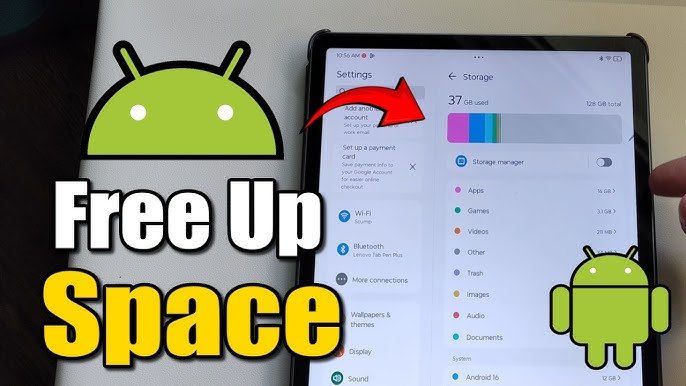
1. Check What’s Using Your Storage
Android provides a storage overview that shows which types of files are taking up space.
Open:
Settings → Storage
Depending on your phone, you may see categories such as:
- Apps
- Images
- Videos
- Audio
- Documents
- System
- Other
Start with the largest category. This helps you free up space without randomly deleting files.
2. Delete Unnecessary Downloads
The Downloads folder can contain files you downloaded months or even years ago.
Open your phone’s Files or File Manager app and check the Downloads folder.
Look for:
- Old APK files
- ZIP files
- PDFs
- Videos
- Images
- Installation files
- Documents you no longer need
Delete files that you are certain you don’t need.
Be careful with files you don’t recognize. If you’re unsure what a file does, don’t delete it until you’ve identified it.
3. Clear App Cache
Applications store temporary files called cache.
Over time, some apps can accumulate a large amount of cached data.
To clear an app’s cache:
- Open Settings.
- Tap Apps.
- Select the application.
- Tap Storage & cache.
- Tap Clear cache.
You can check large apps first, such as browsers, social media apps, and streaming applications.
Important: Don’t confuse Clear cache with Clear storage/data. Clearing storage can remove locally stored application data and may sign you out.
4. Remove Unused Apps
Look through your installed applications.
You may find games and apps that you installed once but haven’t used for months.
To uninstall an application:
- Open Settings.
- Go to Apps.
- Select the application.
- Tap Uninstall.
You can also uninstall many apps directly from the home screen or app drawer by pressing and holding the app icon.
Only uninstall apps you recognize and no longer need.
5. Check WhatsApp Storage
WhatsApp can consume a significant amount of storage because photos, videos, voice messages, and documents are saved on your phone.
In WhatsApp, open:
Settings → Storage and data → Manage storage
Review large files and frequently forwarded media.
You can delete unnecessary videos, images, and documents while keeping important conversations.
Before deleting anything important, make sure you have another copy if you need it later.
6. Delete Large Videos
Videos usually take much more storage than ordinary photos.
Open your Gallery or Photos application and sort through your videos.
Look for:
- Old screen recordings
- Duplicate videos
- Downloaded videos
- Large recordings
- Videos you no longer need
Delete unnecessary files and empty the app’s trash or recently deleted folder if you want the storage space to become available immediately.
7. Remove Duplicate Photos and Files
Duplicate files can waste a surprising amount of storage.
You may have multiple copies of the same photo because you:
- Downloaded it several times
- Received it through different apps
- Created edited copies
- Backed it up manually
Check your gallery and file manager for duplicates before deleting anything.
Keep the best copy and remove unnecessary duplicates.
8. Delete Offline Downloads
Streaming applications often allow you to download content for offline viewing.
These downloads can take up a lot of space.
Check applications such as:
- YouTube
- Netflix
- Spotify
- Podcast applications
- Other video or music apps
Open the relevant app and remove downloaded content you no longer need.
If you regularly download videos for offline use, remember to check these folders periodically.
9. Move Photos and Videos to Cloud Storage
If you have many important photos and videos, you can back them up to a cloud storage service instead of keeping every file locally.
After confirming that your important files have been safely backed up, you can remove local copies to free storage.
Don’t delete your original files until you have verified that the backup completed successfully.
10. Use an SD Card If Your Phone Supports It
Some Android phones have a microSD card slot.
If your device supports expandable storage, you can use a compatible memory card for certain types of files.
For example, you can store:
- Photos
- Videos
- Music
- Documents
However, not every Android phone supports microSD cards, and not every application can be moved to external storage.
Check your phone’s specifications before purchasing a memory card.
11. Delete Old Screen Recordings
Screen recordings are easy to forget about.
A few long recordings can consume hundreds of megabytes or more.
Open your Gallery or File Manager and search for:
Screen recordings
Review the files and remove recordings you no longer need.
This is especially useful if you frequently record your phone screen for tutorials, troubleshooting, or social media.
12. Restart Your Phone After Cleaning Storage
After deleting large amounts of unnecessary data, restart your Android phone.
A restart can help the system refresh its storage information and close background processes.
Then return to:
Settings → Storage
Check how much free space you now have.
How Much Free Storage Should Android Have?
There isn’t one universal amount that every Android phone needs.
However, it’s a good idea not to let your internal storage remain almost completely full.
Keeping some free space available gives Android room for temporary files, app updates, downloads, and normal system operations.
If your phone repeatedly reaches very low storage, consider removing unnecessary files regularly or using expandable/cloud storage where appropriate.
What Should You NOT Delete?
Be careful when manually deleting files.
Avoid deleting:
- Files you don’t recognize
- Android system folders
- Important documents
- Personal photos
- Backup files you still need
- Application data without understanding what it contains
If you are unsure about a file, search for its name or check which application created it before deleting it.
How to Free Up Storage Without Deleting Photos
If your photos are important, you don’t necessarily need to delete them permanently.
You can:
- Back them up to a trusted cloud service.
- Verify that the backup is complete.
- Remove unnecessary local copies.
- Empty the trash/recently deleted folder if appropriate.
- Keep important photos in another backup location.
You can also transfer photos and videos to a computer or external storage device.
Why Does My Android Storage Fill Up Again?
If you regularly free up storage but it becomes full again, check which applications are creating large amounts of data.
Common causes include:
- Messaging media
- Social media cache
- Downloaded videos
- Large games
- Screen recordings
- Automatic downloads
- Offline music and videos
Instead of repeatedly deleting files, identify the application responsible and change its download or storage settings.
Frequently Asked Questions
How do I free up storage on Android quickly?
Start by checking Settings → Storage. Then delete unnecessary downloads, large videos, unused apps, and offline media. Clearing the cache of large applications can also recover some space.
Does clearing cache free up storage?
Yes. Clearing an application’s cache removes temporary files stored by that app. The amount of space recovered depends on the application.
Will clearing cache delete my photos?
Normally, clearing an app’s cache does not delete your personal photos. However, always check what you’re clearing before confirming.
Why is my Android storage full even after deleting files?
Deleted files may still be stored in a trash or recently deleted folder. Apps may also continue creating cache, downloads, and other data.
Can I use an SD card to increase Android storage?
If your phone supports microSD expansion, an SD card can provide additional storage for supported files and, on some devices, certain app data.
Is it safe to delete files from the Android folder?
Don’t manually delete system folders unless you know exactly what you’re removing. Deleting the wrong files can cause applications or system functions to stop working correctly.
Final Thoughts
Running out of storage doesn’t mean you need to delete all your important files.
Start by checking Settings → Storage to see what’s consuming the most space. Then remove unnecessary downloads, unused applications, duplicate files, old videos, offline content, and excessive cached data.
For important photos and videos, consider creating a verified backup before removing local copies.
A few minutes of storage cleanup every month can help prevent your Android phone from constantly running out of space.