Android Phone Running Slow? 12 Ways to Make It Faster
Is your Android phone running slow, freezing, or taking too long to open apps? Over time, many Android phones can become less responsive.
A slow phone doesn’t always mean that you need to buy a new device. Problems such as low storage, too many background processes, outdated software, or demanding applications can affect performance.
In this guide, we’ll show you 12 practical ways to make your Android phone faster.
Why Is My Android Phone Running Slow?
An Android phone can become slow for several reasons:
- Low available storage
- Too many apps running in the background
- Large app caches
- Outdated Android software
- Too many unnecessary applications
- Battery-saving restrictions
- Resource-heavy games and apps
- Too many widgets or live wallpapers
- An aging battery or hardware
- Excessive background syncing
- Overheating
- An older device with limited RAM
Try the following solutions one at a time and check whether your phone becomes more responsive.
1. Restart Your Android Phone
The simplest solution is often overlooked.
Restarting your phone closes temporary processes and gives the system a fresh start.
To restart:
- Press and hold the Power button.
- Tap Restart.
- Wait for the phone to boot.
- Test the applications that were running slowly.
If your phone becomes slow again shortly after restarting, continue with the next solutions.
2. Check Your Available Storage
Low storage can contribute to poor phone performance and can also prevent apps from downloading or updating.
Open:
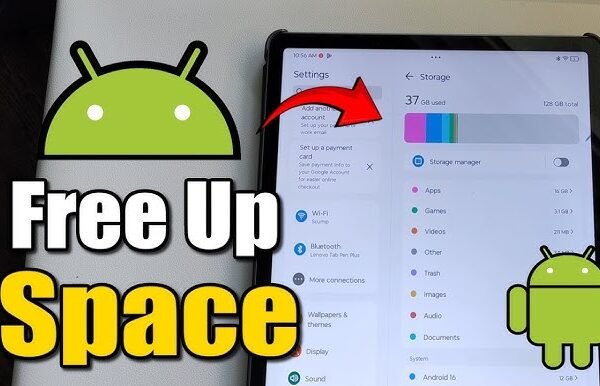
Settings → Storage
Check how much space is available.
If your storage is nearly full, remove unnecessary:
- Videos
- Downloads
- Duplicate photos
- Old documents
- Unused applications
- Offline media
You don’t need to delete important personal files. Start by removing things you no longer need.
3. Uninstall Apps You Don’t Use
Every installed application can consume storage, and some applications may run background processes or services.
Go through your installed apps and remove ones you haven’t used for a long time.
To uninstall an app:
- Open Settings.
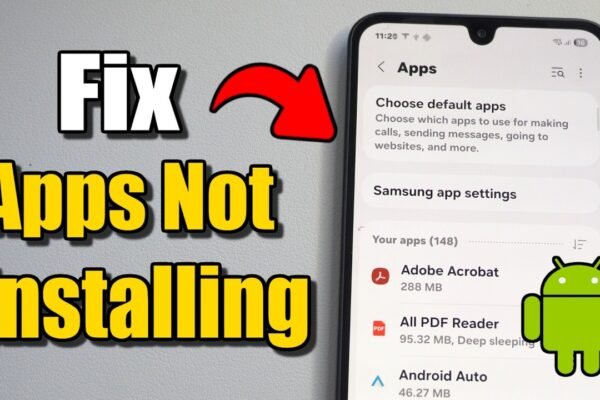
- Tap Apps.
- Select the application.
- Tap Uninstall.
Don’t remove system applications unless you know what they do.
4. Clear Cache From Large Apps
Applications store temporary data called cache.
Some apps can accumulate a large cache over time.
To clear an app’s cache:
- Open Settings.
- Go to Apps.
- Select the application.
- Tap Storage & cache.
- Tap Clear cache.
You can check browsers, social media apps, and other frequently used applications first.
Remember that Clear cache is different from Clear storage/data. Clearing storage can remove locally stored app information and may sign you out.
5. Update Android
An outdated operating system can cause compatibility and performance problems.
Check for available updates by opening:
Settings → System → Software update
The exact menu can differ depending on your phone manufacturer.
If an update is available, install it when convenient and restart the phone afterward.
Keep in mind that very old devices may not receive newer Android versions.
6. Update Your Apps
Application developers regularly release updates that can fix bugs and improve compatibility.
Open Google Play Store and check for available updates.
You can usually find them through:
Google Play Store → Profile picture → Manage apps & device
Install available updates, particularly for applications that frequently crash or run slowly.
7. Reduce Background Activity
Some applications continue performing tasks in the background even when you’re not actively using them.
Depending on your Android version and manufacturer, you may be able to control background battery or data usage for individual apps.
Open:
Settings → Apps → Select an app
Look for options related to:
- Battery
- Background activity
- Mobile data
- Background data
Avoid restricting essential system applications unless you understand the consequences.
8. Remove Unnecessary Widgets
Widgets can be useful, but having many active widgets can add unnecessary background activity.
Look at your home screen and remove widgets you don’t use.
To remove a widget:
- Press and hold the widget.
- Drag it toward Remove or tap the remove option.
Keep only the widgets that are genuinely useful to you.
9. Use a Simple Wallpaper
Animated or live wallpapers can use additional system resources.
If your phone has limited hardware, try using a simple static wallpaper.
You can also reduce unnecessary visual effects if your phone provides performance-related settings.
This won’t transform every phone, but it can help older or lower-end devices feel more responsive.
10. Check for Overheating
Heat can affect the performance of electronic devices.
If your phone becomes very hot while gaming, charging, or using demanding applications, give it time to cool down.
Avoid:
- Using demanding games while charging for long periods
- Leaving the phone in direct sunlight
- Blocking the phone’s ventilation
- Using applications that are causing unusually high CPU usage
If your phone frequently becomes extremely hot without an obvious reason, investigate the application or hardware issue instead of simply trying to make it faster.
11. Remove Unnecessary Downloads and Offline Content
Downloaded videos, music, documents, and other offline content can consume storage.
Check your:
Files → Downloads
Also check applications that support offline content.
Remove files you no longer need.
This can free storage without uninstalling applications or deleting your important personal files.
12. Factory Reset as a Last Resort
If your Android phone remains extremely slow after trying everything else, a factory reset may be considered.
However, do not do this before creating a backup.
A factory reset removes personal data and resets the phone to its factory state.
Before resetting, back up important:
- Photos
- Videos
- Contacts
- Documents
- Messages
- Other important files
Then check your phone manufacturer’s instructions for the correct reset procedure.
A factory reset can help when software problems have accumulated over a long period, but it won’t make old hardware permanently faster than its physical limitations.
How to Make an Old Android Phone Faster
If you have an older Android phone with limited RAM or storage, focus on reducing the workload.
Try these steps:
- Keep sufficient free storage.
- Uninstall applications you don’t use.
- Use lightweight versions of apps when available.
- Avoid unnecessary widgets.
- Use a simple wallpaper.
- Keep Android and apps updated when updates are available.
- Restart the phone occasionally.
- Avoid running many demanding applications simultaneously.
Don’t expect an old phone to perform like a new flagship device. Hardware limitations still matter.
Should You Use a RAM Cleaner App?
You generally don’t need a third-party “RAM cleaner” simply because your RAM appears full.
Android manages memory automatically and may use available RAM to keep apps ready for faster access.
Instead of constantly forcing apps to close, focus on the actual cause of the slowdown, such as:
- Low storage
- A problematic application
- Overheating
- Outdated software
- Hardware limitations
Be cautious with apps that promise dramatic performance improvements with one tap, especially if they request unnecessary permissions.
Why Is My Android Phone Slow After an Update?
Sometimes a phone can feel slower temporarily after a major software update.
The system may perform background tasks such as application optimization, indexing, or synchronization.
Give the device some time and restart it.
If the slowdown continues for a long period, check:
- Available storage
- App updates
- Battery usage
- Problematic applications
- System updates or patches
If one particular app is consuming unusually high resources, investigate that application separately.
Why Is My Android Phone Slow When Gaming?
Games can require significant CPU, GPU, RAM, and storage resources.
If games lag:
- Close unnecessary applications.
- Reduce game graphics settings.
- Keep your phone cool.
- Free up storage.
- Install available game updates.
- Avoid playing demanding games while the phone is overheating.
A phone with older or lower-end hardware may not be capable of running modern games at high graphics settings smoothly.
Frequently Asked Questions
How can I make my Android phone faster?
Start by restarting the phone, freeing storage, uninstalling unused apps, clearing unnecessary app cache, updating Android and apps, and reducing unnecessary background activity.
Does clearing cache make Android faster?
It can help when an application’s cached data has become unusually large or problematic, but clearing cache isn’t a guaranteed solution for every slow phone.
Does deleting apps improve Android performance?
Removing unused apps can free storage and reduce potential background activity. The effect depends on the apps and the condition of your phone.
How much storage should I keep free on Android?
There is no single amount that applies to every Android device. However, avoid keeping the internal storage almost completely full. Leaving some free space gives the system room for temporary files, downloads, and updates.
Should I use a RAM booster app?
Usually, you don’t need a third-party RAM booster. Android already manages memory, and constantly force-closing applications can be counterproductive.
Will a factory reset make my phone faster?
A factory reset can resolve certain software problems by returning the device to a clean state. However, it cannot overcome hardware limitations or make old hardware perform like newer hardware.
Final Thoughts
If your Android phone is running slow, don’t immediately assume that you need a new phone.
Start with simple steps such as restarting the device, freeing storage, removing unused apps, clearing unnecessary cache, and updating Android and your applications.
If your phone is old, focus on reducing unnecessary background activity and using applications that your hardware can handle comfortably.
For persistent problems, identify which app or system process is consuming resources before making major changes. A factory reset should remain a last resort, and you should always back up important data first.