Android Battery Draining Fast? 15 Ways to Fix It
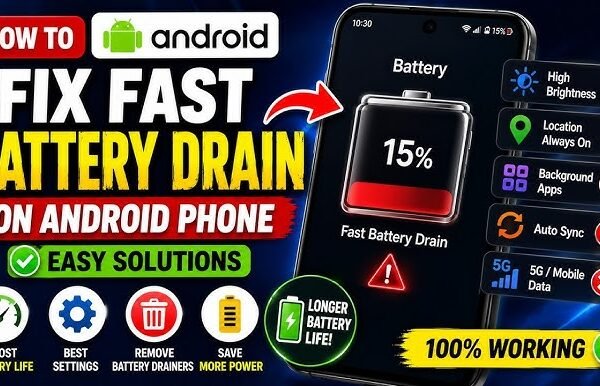
Is your Android battery draining fast even when you aren’t using your phone much? Do you charge your phone in the morning only to find the battery nearly empty by the afternoon?
Fast battery drain can have several causes. A bright screen, demanding apps, weak network signal, background activity, high temperatures, location services, and an aging battery can all contribute to increased battery consumption.
The good news is that you can often improve battery life by changing a few settings and identifying which apps or features are using the most power.
In this guide, we’ll explain 15 ways to fix fast battery drain on Android.
Why Is My Android Battery Draining So Fast?
Common causes include:
- High screen brightness
- Apps running in the background
- Weak mobile network signal
- Location services
- Always-On Display
- High screen refresh rate
- GPS and navigation
- Mobile hotspot
- Bluetooth and other connectivity features
- Battery-intensive games
- Streaming video
- Phone overheating
- Outdated apps or Android software
- Too many notifications
- An old or degraded battery
Android provides battery-usage information that can help you identify which apps and features are consuming the most power.
1. Check Which Apps Are Draining Your Battery
Before changing lots of settings, find out what’s actually using your battery.
Open:
Settings → Battery → Battery usage
The exact menu can vary depending on your Android phone.
Look for applications with unusually high battery usage.
If an app you rarely use is consuming a large amount of power, investigate its background activity or consider uninstalling it.
This is one of the most useful first steps because it helps you identify the actual source of the drain.
2. Reduce Screen Brightness
Your display can consume a significant amount of battery, particularly when brightness is kept high.
Try reducing the brightness to a comfortable level.
You can also enable:
Settings → Display → Adaptive brightness
The exact name and location may vary by device.
Android recommends reducing brightness and using automatic/adaptive brightness to help extend battery life.
3. Reduce Screen Timeout
If your screen stays on for several minutes after you stop using the phone, it wastes battery.
Go to:
Settings → Display → Screen timeout
Choose a shorter period, such as 30 seconds or 1 minute.
This prevents the display from remaining active unnecessarily.
4. Turn Off Always-On Display
If your phone has an Always-On Display, it can consume additional power because parts of the screen remain active.
If you don’t need it, try disabling it.
The setting is usually located under:
Settings → Display
or
Settings → Lock screen
The exact location depends on the manufacturer.
If battery life is more important to you than having the clock and notifications visible while the phone is locked, turning it off can help reduce consumption.
5. Restrict Apps With High Background Battery Usage
Some applications continue working when you’re not actively using them.
Go to:
Settings → Battery → Battery usage
Select an application that is consuming excessive power.
Depending on your phone, you may see options for restricting background activity or optimizing battery usage.
Be careful with essential applications such as messaging, phone, alarm, or other apps where you need timely notifications.
Android supports restricting high battery-use apps, while the exact controls vary by device.
6. Turn On Battery Saver
Battery Saver is useful when you need your phone to last longer.
Usually you can find it under:
Settings → Battery → Battery Saver
Battery Saver can limit background activity and certain features to extend the remaining battery life. Some notifications or processes may be delayed while it is enabled.
You can also add Battery Saver to your Quick Settings panel for easier access.
7. Reduce the Screen Refresh Rate
Some newer Android phones support 90Hz, 120Hz, or higher refresh rates.
Higher refresh rates can make scrolling and animations look smoother, but they can also use more power.
If your phone provides the option, try:
Settings → Display → Refresh rate
Choose an adaptive or standard refresh rate if you want to prioritize battery life.
Not every phone provides this setting.
8. Turn Off Location When You Don’t Need It
Location services can consume additional battery, particularly when applications frequently request your location.
If you don’t need location services, you can temporarily turn them off from Quick Settings.
You can also review which applications have access to your location.
Go to:
Settings → Location → App permissions
Review apps that have unnecessary location access.
Keep location enabled when you need features such as navigation, maps, ride-hailing, or location-based services.
9. Turn Off Bluetooth When You Don’t Need It
Bluetooth generally doesn’t consume huge amounts of power by itself on modern phones, but unnecessary connectivity can still contribute to battery usage.
If you aren’t using:
- Wireless headphones
- Smartwatches
- Speakers
- Car Bluetooth
- Other Bluetooth accessories
you can turn Bluetooth off.
You can quickly control it from the Quick Settings panel.
10. Avoid Using Mobile Hotspot for Long Periods
Mobile hotspot can consume a significant amount of battery because your phone is simultaneously maintaining a mobile network connection and sharing it with other devices.
If you don’t need the hotspot, turn it off.
Also remember that connected devices can continue using your phone’s mobile data and power until the hotspot is disabled.
11. Check Your Mobile Network Signal
A weak or unstable mobile signal can contribute to faster battery drain because the phone may work harder to maintain a connection.
This can be especially noticeable in areas with poor coverage.
If you’re somewhere with no useful mobile service and don’t need calls or mobile data temporarily, Airplane mode can reduce unnecessary network searching.
Android also recommends Airplane mode when a mobile connection isn’t needed.
12. Keep Your Phone Cool
Heat is bad for battery performance.
Android’s official guidance notes that a hot battery can drain much faster, even when the phone isn’t being actively used.
Avoid leaving your phone:
- In direct sunlight
- Inside a hot car
- Under a pillow while charging
- Near other heat sources
If your phone becomes hot during gaming or other demanding tasks, stop using it for a while and allow it to cool down.
13. Update Android and Your Apps
Software updates can include bug fixes and improvements.
To check Android updates, try:
Settings → System → Software update
To check application updates:
Google Play Store → Profile picture → Manage apps & device
Install available updates when appropriate.
Google recommends checking for Android and app updates when troubleshooting persistent battery problems.
14. Reduce Battery-Heavy Activities
Some activities naturally consume a lot of battery.
Examples include:
- Playing graphics-heavy games
- Watching videos for long periods
- Using GPS navigation
- Recording video
- Using the camera extensively
- Streaming music or video
- Using mobile hotspot
- Video calls
You don’t necessarily need to stop using these features.
Instead, understand that heavy usage will naturally reduce battery life and consider using them while connected to a charger when appropriate.
15. Check Whether Your Battery Is Old
If you’ve tried everything above and your phone still loses battery unusually quickly, the battery itself may have degraded.
Smartphone batteries are consumable components. Their capacity decreases over time with repeated use and charging.
Some phones provide a battery-health or diagnostics feature.
If your phone supports it, check:
Settings → Battery
Look for options such as:
- Battery health
- Battery diagnostics
- Battery information
If the battery has significantly degraded, replacing it may provide a much bigger improvement than changing software settings.
Why Does My Battery Drain Overnight?
If your phone loses a large amount of battery while you’re sleeping, check the following:
- Open Settings → Battery → Battery usage.
- Look for apps with high background usage.
- Check whether mobile signal is weak.
- Review location permissions.
- Check Always-On Display.
- Look for hotspot or Bluetooth activity.
- Restart your phone.
- Install available system and app updates.
If the phone remains unusually hot while you’re not using it, investigate which application or service is responsible.
Why Is My Battery Draining After an Android Update?
Battery usage can temporarily increase after a major system update while the phone performs background optimization and other setup tasks.
Google notes that increased battery drain can occur temporarily after updates on some devices.
If the problem continues for several days, check battery usage and make sure your apps are updated.
Does Dark Mode Save Battery?
Dark mode can reduce power consumption on some phones with OLED-type displays because pixels can consume less power when displaying black.
However, the benefit depends on the phone’s display technology, brightness, apps, and other settings.
If you prefer Dark Mode, enabling it can be a reasonable battery-saving option on supported devices.
Should I Close All Apps to Save Battery?
You don’t necessarily need to constantly close every application.
Instead, look at Battery usage and identify apps that are actually consuming excessive power in the background.
Force-stopping applications repeatedly can also make some apps reload completely when you reopen them.
Focus on problematic applications rather than trying to close everything.
Does 5G Drain Battery Faster Than 4G?
Battery consumption varies significantly depending on the phone, network, signal strength, and how the device is using the connection.
If you’re in an area where 5G coverage is weak or unstable, the phone may use more power maintaining connectivity.
If your phone provides a preferred network-type setting and battery life is a priority, you can test whether using 4G/LTE improves your experience.
Is Fast Charging Bad for Battery Life?
Fast charging is convenient, but heat is an important factor in battery longevity.
Use a compatible charger and follow your phone manufacturer’s charging guidance.
Avoid exposing the phone to excessive heat while charging.
Google recommends using the power adapter supplied with the phone or an appropriate compatible adapter and keeping the device cool.
When Should You Replace an Android Battery?
Consider checking the battery or having it professionally inspected if:
- The phone loses charge unusually quickly
- Battery percentage drops unexpectedly
- The phone shuts down with significant charge remaining
- The battery becomes swollen
- The phone becomes unusually hot
- Battery life has declined significantly over time
A swollen battery is a hardware safety issue. Stop using the device and seek qualified repair assistance rather than continuing to charge it.
Frequently Asked Questions
Why is my Android battery draining so fast?
Common causes include high screen brightness, background apps, weak network signal, location services, demanding applications, overheating, and battery degradation.
How do I find what is draining my Android battery?
Open Settings → Battery → Battery usage and look for applications or system features consuming an unusually large percentage of power.
Does Battery Saver improve battery life?
Yes. Battery Saver is designed to extend remaining battery life by limiting certain background activities and features.
Does lowering brightness save battery?
Yes. Lower screen brightness generally reduces display power consumption. Adaptive brightness can also help manage brightness automatically.
Why does my Android battery drain overnight?
Possible causes include background applications, weak network signal, location services, synchronization, notifications, or battery degradation. Check Battery usage to identify unusual activity.
How can I make my Android battery last all day?
Reduce unnecessary screen brightness, use Battery Saver when needed, restrict high-drain background apps, reduce unnecessary connectivity and location usage, keep the phone cool, and identify problematic apps through Battery usage.
Can a battery replacement fix fast battery drain?
If the battery has significantly degraded, replacing it can restore much of the device’s original battery capacity. However, software or app-related battery drain should be investigated first.
Final Thoughts
If your Android battery is draining fast, don’t immediately assume that your phone needs a new battery.
Start by checking Battery usage to identify what’s consuming the most power. Then reduce screen brightness, shorten screen timeout, review background apps, use Battery Saver, manage location and connectivity, and keep your phone cool.
If the problem continues despite these changes, especially on an older phone, the battery itself may have degraded.
The most important step is to find the cause before changing everything. Once you know which app, setting, or hardware issue is responsible, fixing the battery drain becomes much easier.